For an ordered and bunched sorting of product parts and for a better traceability in the production carts and their shelfs can be managed in the PPS.
With that workers can be instructed to put the parts into a preset shelf of a preset cart. In that way the worker of the following station also will know, where the needed part is to be found.
In the production planning the cart administration can be opened with button of the icon bar. All carts will be named and the number of the available shelfs has to be entered. Additionally needs to be configured, how many of the parts will fit into one shelf.
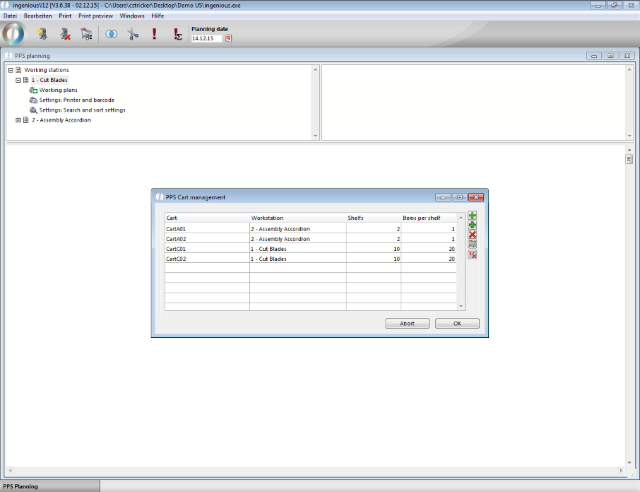
PPS cart administration
In the cart administration the follwing features are provided:
 |
Add a new cart |
 |
Copy an existing cart configuration |
 |
Delete the selected cart |
 |
Show the actual filling level of the cart |
 |
Resets the actual cart planning for all carts (Deletes the presetted shelf allocation for not yet filled cart shelfs) |
For each work station can be defined, in which order the cart shelfs will be filled.
| Continuously | The cart shelfs will be filled continuously with the parts of any position of the project |
| by project | The cart shelfs will be filled by project and position. This means for cutting optimized parts that all blades from position 1 from project A will be put into the first shelf and all blades from position 2 from project A to the secnd shelf. |
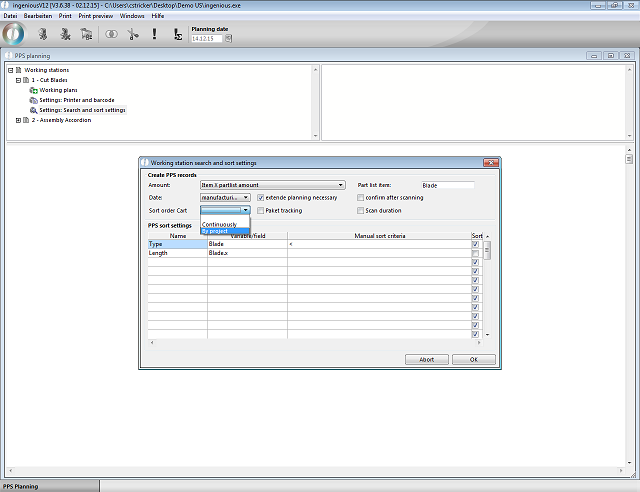
Configuration of the sorting
To display the preset cart at the work station, the PPS templates has to be adapted.
| Preset of the cart |
Copy Code |
|---|---|
<select id="PPSCart" name="PPSCart" onchange="javascript:document.Overview.submit();"> <!--4DLOOP aPPSWeb_Cart--> <option<!--4DIF (vPPSWeb_lastCart=aPPSWeb_Cart{aPPSWeb_Cart})--> selected <!--4DENDIF-->> <!--4DVAR aPPSWeb_Cart{aPPSWeb_Cart}--> </option> <!--4DENDLOOP--> </select> | |
| Preset of the cart shelf |
Copy Code |
|---|---|
<select id="PPSCartShelf" name="PPSCartShelf"> <!--4DLOOP aPPSWeb_CartShelf--> <option<!--4DIF (vPPSWeb_lastCartShelf=aPPSWeb_CartShelf{aPPSWeb_CartShelf})--> selected<!--4DENDIF-->> <!--4DVAR aPPSWeb_CartShelf{aPPSWeb_CartShelf}--> </option> <!--4DENDLOOP--> </select> | |
| Button for the confirmation of the position |
Copy Code |
|---|---|
<button type="submit" value="Select" name="BTN_Scan_<!--4DVAR aPPSWeb_ID{aPPSWeb_Status}-->" class="btnStation"<!--4DIF ((aPPSWeb_Status=1)|(aPPSWeb_Status{aPPSWeb_Status-1}=300))--> id="PPSNextRecord"<!--4DENDIF-->> <img border="0" src="/images/ok_pps.png"> </button> | |